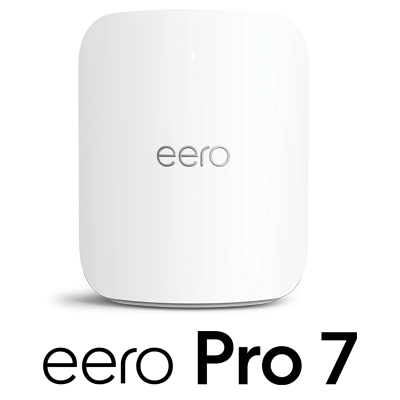
WiFi at the speed of life.
The eero Pro 7 is a tri-band mesh WiFi 7 system that brings fast, secure, future-ready Wi-Fi coverage and performance to your home. With eero, you’re investing in a network that grows with your needs.
Key Features
![]() | |
|---|---|
| Wireless specs | Tri-band Wi-Fi 7 (2:2:2) |
| Channel support | 320 MHz |
| Speed | Up to 5 Gbps |
| Ethernet ports | Two 5 GbE ports |
| Power supply | 27W USB-C power adapter |

Coverage

We recommend placing one eero Pro 7 device for every two rooms, spread evenly throughout your space to maximize performance. Additional eero Pro 7 devices can be added for a low monthly rental fee.
| Let's talk about your home | What you'll need |
|---|---|
| Studio or 1 Bedroom | 1 eero Pro 7 device |
| 2 - 3 Bedrooms | 2 eero Pro 7 devices |
| 4 Bedrooms | 3 eero Pro 7 devices |

Get started
Download the eero mobile app on the Apple App Store or Google Play Store.
With the app, you can:
- Manage connected devices
- View activities and run speed tests
- Easily update your account profile
Frequently Asked Questions
What devices are compatible with eero?
eero supports a variety of devices, including smartphones, tablets, and smart home devices. Eero Pro 7 is compatible with WiFi 7, WiFi 6, WiFi 6e, and WiFi 5.
Can I use a different USB-C power cable with eero?
No, you must use the USB-C power cable that comes with the eero unit. Otherwise, you risk damaging the device if using a different power cable.
My internet seems slow. How do I troubleshoot my network?
Troubleshooting Tips
Restart Your eero
- Unplug your eero device, wait 30 seconds, then plug back in.
- Ensure your modem is online and the Ethernet cable between the modem and eero is firmly connected.
- LED Light Status
- White = Working normally
- Blue = Setup mode
- Red = Offline / No internet
Restart Your Modem
- Unplug your modem for 2 minutes, then plug back in and wait for it to fully connect.
Update Your eero (via eero App)
- Open the eero app on your mobile device
- Check for firmware updates
- If available, download & install updates
Need additional support? Contact Technical Support, available 24/7, at
Guam 671-688-2273
CNMI 670-488-2273
For more information on eero, you may visit eero: The way Wi-Fi should be
eero products and services are subject to the disclaimers located at: eero.com/legal/disclaimer
Need Help With Ordering?
DOCOMO PACIFIC Guam+1.671.688.2273
DOCOMO PACIFIC CNMI+1.670.488.2273